 Web Record
Using the TackTracker Cloud
The TackTracker Cloud is a portal for GPS recorded yacht races and other events. You can watch races live, as they happen, or review past races. You'll want to visit tacktracker.com/cloud for many reasons:
- Watch online races published by you or others
- Watch your Live Trackers in the web player
- Manage your home page
- Manage who can watch your races
- Setup live tracking: Create races and manage your live trackers
- Manage your user profile and account
Watch online races published by you or others
TackTracker's web player has many features to help you enjoy and learn from the live action and replays. Read about our analysis tools to learn how to get the most out of the web player.
Regattas and Home Pages
There are two places where you can find and watch races:
- Regattas: A Regatta is a collection of races run over a short period. Find Regattas at: tacktracker.com/cloud/regattas
- Home Pages: Each TackTracker Cloud account get a home page where their races may be published. Find home pages at: tacktracker.com/cloud/home
Typically Regattas are published by clubs and associations - whilst home pages are published by individuals or anyone who wishes to publish a race to their account.
TackTracker lets you navigate the home pages in two ways:
- Visit the latest races page at tacktracker.com/cloud/home/public. This is the default page in the Home Pages tab and shows the most recently published races in chronological order.
- Visit a friends home page. Home pages each have the url: tacktracker.com/cloud/home/username. You can get there by typing the username of the user you wish to visit in the Find user: search box.
Watching a Race
To watch a race, click the button in the race list. Races are played in the TackTracker Web player in the main part of the window. The web player works much like a video player and, like a video player, a fullscreen mode is available.
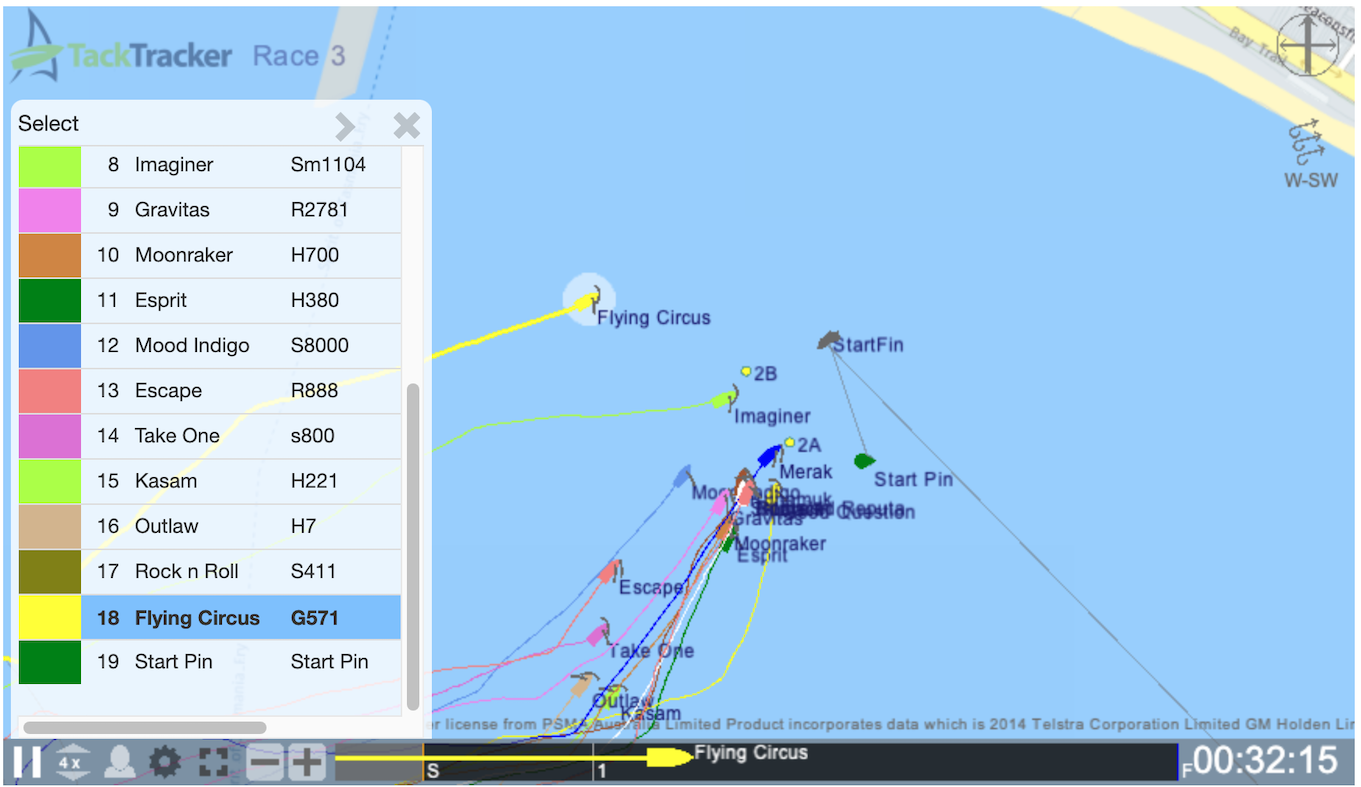
Click the "person" icon to display a leaderboard of all competitors. Click on a competitor to see it in the timeline. You can drag the boat along the timeline (unless in live mode) to specific point in the race. Additional help information on the web player controls is available in a dropdown control above the player.
Publishing your own races
Anyone can create a TackTracker Cloud account and publish races to their own home page. Each home page presents races published by the owner of the page. The owner has the option of publishing races publically for anyone to view, or privately to his or her list of friends. If you are a friend, you must sign in to your account to see the private races.
To get started, your first step is to create yourself an account at tacktracker.com/cloud/auth/register.
Your TackTracker Cloud Account
Sign in to your TackTracker Cloud account to access additional features:
Your Account Profile
To manage your profile, sign in and click on your name or picture at the top right of the page. You will see three tabs:
- Profile
- Customise your TackTracker profile, including your thumbnail picture and a public description or comment.
- Account
- Manage your Tracker Right balances here - needed for live tracking. Also unlock Race Reports.
- Settings
- Individual settings to customize your TackTracker Cloud to suit you.
Watch your Live Trackers
If you have live trackers and are signed in, you will see an additional Trackers tab:
On this page your live trackers will be listed along with the current status of each tracker. If any of your trackers is currently active, you can click on it to see the trackers current location on the map. If any other TackTracker trackers are in the vicinity that you have access to, you will see their location and tracks too.
Manage who can watch your races
We've seen above how you can specify that a race is visible only to your nominated list of friends. To manage your list of friends, click the button in the home page header. This will expose your list of friends. You can delete entries from this list, or add a friend by typing the friends TackTracker username in the "Find user" search box above.
Race Management
Click Setup at the top right of the TackTracker Cloud page to access Race Management pages:
- Races is where you create and manage Regattas and Races. The direct link is: tacktracker.com/cloud/manage/races.
- Trackers is where you add and manage live Trackers. The direct link is: tacktracker.com/cloud/manage/devices.
More information on setup and management of live races is available here.
Customization
You can customize the player to suit your needs:
- Embed the web player into your club or regatta website so people can watch the race alongside the results.
- Add a banner image or sponsor banner to the player.